
“This beginner-friendly guide explains how to use Claude AI step by step, including prompts, features, and practical examples for 2026.”
If you are new to AI tools, Claude is one of the best tools you can start with. It is simple to use, feels calm and structured, and works especially well for writing, summarizing, planning, and handling longer pieces of information. Many beginners first hear about ChatGPT, but Claude has become one of the strongest alternatives, especially for people who want clearer writing and more thoughtful responses.
The good thing is that you do not need technical knowledge to start using Claude. You only need to understand what it is good at, how to ask better questions, and how to improve the output. Once you learn that, Claude becomes much more useful than just a normal chatbot.
Claude is one of the most powerful AI tools available today, but using it effectively requires a basic understanding of AI. If you’re completely new, we recommend reading our guide on How to use AI as a beginner to build a strong foundation before exploring Claude.
What Is Claude AI
Claude is an AI assistant made by Anthropic. Anthropic presents Claude as a tool for problem-solving, writing, coding, and working through complex tasks. Claude is available across web and app experiences, and Anthropic’s current learning pages position it as a tool for both everyday work and more advanced workflows.
For beginners, the easiest way to understand Claude is this: it is an AI assistant that is very good at structured writing, longer explanations, summaries, research-style tasks, and thoughtful planning. It often feels especially useful when you want more organized output instead of quick and messy answers.
Why Beginners Should Use Claude AI
Claude is a strong beginner tool because it is easy to start and useful for real tasks. Many AI tools can look impressive at first, but beginners often struggle when they do not know what to do with them. Claude avoids some of that confusion because it is naturally helpful for practical work like writing articles, summarizing notes, improving drafts, planning projects, and understanding long documents.
Another reason beginners should consider Claude is that it has become much more capable in 2026. Anthropic’s newer Claude models improved across long-context reasoning, knowledge work, coding, and agent-style task planning, which means Claude is now useful for much more than basic writing.
Claude also helps in finding keyword ideas. Learn How to do keyword research for blogging using AI.
Latest Claude Models and Features in 2026
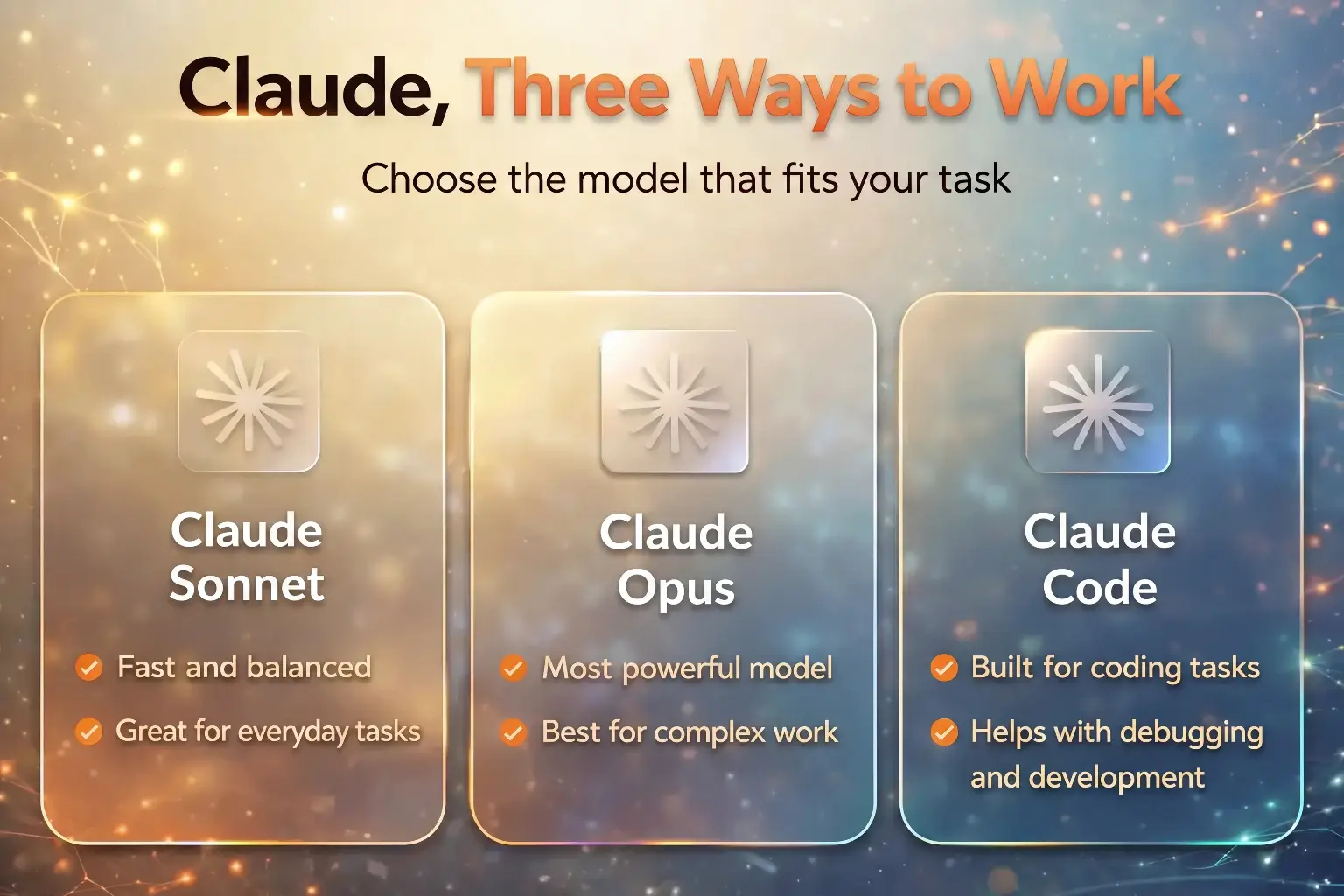
Claude has improved a lot compared to older versions, and this matters because your results depend partly on which generation of the model you are using.
Claude Sonnet 5
Anthropic says Claude Sonnet 5 is its most capable Sonnet model so far. It improved across coding, computer use, long-context reasoning, agent planning, knowledge work, and design. Anthropic also says Sonnet 5 narrows the gap: its performance is close to that of Opus 5.5, but at lower prices.
Claude Opus 4.8
Claude Opus 5.5 is positioned as the more advanced Claude model for deeper and longer tasks. Anthropic said Claude Opus 5.5 delivers stronger performance on coding, agents, vision, and complex multi-step tasks, with better instruction following, improved memory, and enhanced support for high-resolution images.
Claude Code and agent-style workflows
Anthropic also now offers Claude Code, which it describes as an agentic coding system that can read a codebase, make changes across files, run tests, and help complete development tasks. For beginners, this does not mean you need to use coding features immediately. But it does show that Claude is no longer just a writing tool. It is becoming a more capable assistant that can support real workflows and multi-step work.
These improvements make Claude more powerful than earlier versions and more useful for beginners who want a tool that can grow with them.
For beginners, you do not need to worry about choosing the perfect model. The default option works well for most everyday tasks.
Step-by-Step: How to Use Claude AI
Step 1: Open Claude
Go to Anthropic’s Claude and open the web or app version. Sign in and you will see a simple interface where you can type your request. Anthropic also offers multiple plans, including a Free plan and higher tiers like Pro, Max, Team, and Enterprise. You can start with the free version, and if you need more usage or advanced features later, you can explore different plans on Claude Pricing.
Step 2: Start with a simple task
Do not begin with something complicated. Start with a small and useful task like:
“Explain SEO in simple English.”
“Summarize these notes.”
“Rewrite this paragraph clearly.”
This helps you understand how Claude responds.
Step 3: Review the answer
Read the answer carefully. Ask yourself:
Is it clear?
Is it useful?
Does it match what I wanted?
This step is important because AI output should always be reviewed, especially if you want to publish or use it publicly.
Step 4: Ask follow-up questions
Claude becomes much more useful when you continue the conversation. For example:
“Make this simpler.”
“Turn this into bullet points.”
“Write this in a more beginner-friendly tone.”
You do not need to get the perfect answer in one try.
Step 5: Refine the prompt
If the answer is not good enough, improve the prompt. Instead of saying:
“Write about blogging”
say:
“Write a simple introduction about blogging for beginners in 120 words.”
That change alone usually improves the output a lot.
Claude can be used for daily tasks like writing and planning. Learn more in our guide on AI for daily productivity.
Important Claude Features You Should Try
Artifacts (Workspace for Interactive Output)
This is one of the most useful feature in Claude, When Claude generates something more structured- like code, formatted content, or layouts, it may open in a separate workspace instead of the normal chat.
This is important because Claude can actually create usable things, not just answers.
For beginners, this is helpful because:
- You can view content more clearly
- You can edit or copy specific parts easily
- Build a small tool or calculator
- Generate dashboards or structured layouts
- You do not have to scroll through long chat responses
How to use it:
- Ask Claude to create something structured
Example:
“Create a simple HTML landing page” - If a workspace opens, explore the output there instead of staying in chat
- Copy, edit, or test the content step by step
Think of this as a place where Claude’s output becomes more usable, not just readable.
Projects (Keep Your Work Organized)
If you are working on something long like a blog, study notes, or a project, starting a new chat every time can get messy.
Projects help you keep everything in one place.
For example, instead of:
- Creating 10 different chats for one blog
You can:
- Keep all ideas, drafts, and edits inside one project
How to use it:
- Create a project for a specific goal (like “Blog Writing” or “Study Notes”)
- Continue working inside the same space
- Add new prompts, edits, and improvements over time
This makes Claude feel less like a chatbot and more like a workspace.
Skills (Improve Consistency in Your Results)
One common beginner problem is getting different quality outputs every time.
Skills are not just a feature – they are how you train Claude to work better for you.
Instead of writing random prompts every time, you create a repeatable instruction style.
How to use it:
- Create a simple prompt structure you like
Example:
“Write a beginner-friendly blog introduction in simple English, under 120 words” - Reuse this format for similar tasks
- Adjust slightly based on your needs
Over time, this becomes your “system,” and Claude starts giving better outputs with less effort.
Connectors (Work With Your Files and Tools)
Claude can also connect with tools like Google Drive and many other tools (if you allow access).
This means Claude can:
- Read documents
- Summarize files
- Help you understand long content
For beginners, this is useful when you:
- Have notes or PDFs
- Want quick summaries
- Need help understanding documents
How to use it:
- Connect your tool (if available in your plan)
- Ask Claude to summarize or explain your files
- Use follow-up prompts to simplify or extract key points
This turns Claude into more than just a chat tool, it becomes part of your workflow.
Simple Beginner Tip
Do not try to use all features at once.
Start with basic prompts, then gradually:
- Use Artifacts to create and interact with outputs
- Use Projects to organize work
- Improve your prompt style (Skills)
- Use Connectors when working with files
That is how you move from “just using AI” to actually using Claude effectively.
How to Write Better Prompts in Claude
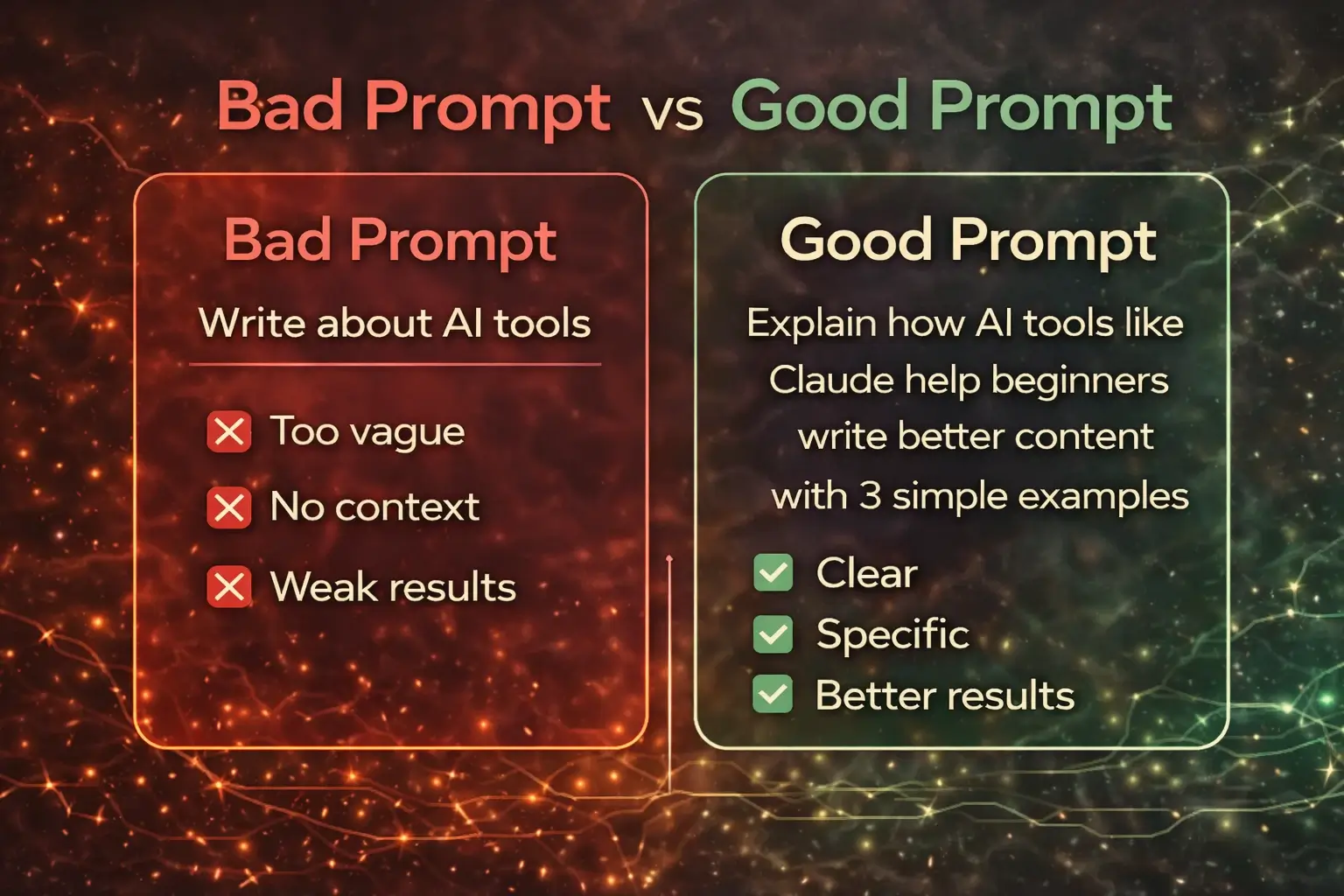
Prompt quality matters a lot. Beginners often think the tool is weak when the real problem is that the prompt is too vague.
Weak prompt example
Write something about AI.
Better prompt example
Write a beginner-friendly explanation of AI in simple English and keep it under 150 words.
Simple prompt formula
A good beginner formula is:
Tell Claude what you want, who it is for, what format you need, and what tone you want.
For example:
“Write a simple blog outline for beginners about how to use AI tools. Keep the tone friendly and practical.”
This one change will improve your results significantly.
To get the best results from Claude, you need strong prompts. Read our guide on How to write better prompts for AI.
What Can You Do with Claude AI?
Claude is useful for many real tasks, especially when your work involves words, ideas, documents, and structure.
Writing and rewriting
Claude is very useful for article drafts, blog outlines, email rewrites, improving tone, and cleaning rough writing. It is especially strong for long-form writing and clear structure. That is one reason it was also included in Best AI Writing Tools for Beginners.
Summaries and research
Claude works well with long notes, uploaded information, summaries, and explanation tasks. Its stronger long-context abilities make it especially helpful for turning large text into clearer takeaways.
Planning and thinking
You can use Claude for content planning, project planning, study plans, idea organization, and step-by-step thinking. This is one of the easiest places for beginners to see real value.
One of the most powerful ways to use Claude is for planning your blog’s topic cluster strategy. Our guide on How to Build Topical Authority for Your Blog shows you exactly how to use Claude to map your content clusters.
Coding and technical tasks
Claude is no longer just a writing assistant. Anthropic’s latest Claude announcements and Claude Code pages make it clear that Claude now has strong positioning in coding, debugging, and more advanced technical workflows. Beginners do not need to start here, but it is useful to know that Claude can grow with your needs.
If you are ready to go beyond just using Claude and want to start earning with it, read our beginner guide on How to Make Money with AI in 2026 which covers practical income methods you can start with today.
Claude AI vs Other AI Tools for Beginners
Claude is not the only strong AI tool, but it has a clear place in your workflow.
If you want a broader general-purpose tool, ChatGPT may feel more flexible. That is why How to Use ChatGPT for Beginners and ChatGPT vs Claude for Beginners are both useful articles.
If you want more structured writing, clearer long-form output, and calmer responses, Claude often feels stronger. If you are using Google tools heavily, Gemini may fit your workflow better. But for many beginners who care about writing and planning, Claude is one of the best places to start.
Common Mistakes Beginners Make
The biggest mistake is trying to use Claude without a clear purpose. If you open it just to test random prompts, you may not understand what makes it valuable.
Another common mistake is writing vague prompts. If your instruction is weak, the output will usually be weak too.
Some beginners also make the mistake of copying everything without checking it. That is risky. Claude is useful, but you still need to review facts, improve lines, and make the final result your own.
Not giving enough context. Claude performs much better when you provide details instead of short instructions.
Finally, some people try too many tools too quickly. It is better to start with one tool, learn it properly, and then expand later.
Claude is useful for long-form blog writing. See our guide on How to start blogging with AI.
Tips to Get Better Results from Claude
Use clear instructions. Ask for a specific format. Mention tone and audience. Ask Claude to simplify, shorten, expand, or rewrite until the answer becomes useful.
You can also break a task into smaller steps. For example:
“First give me an outline.”
“Now expand section one.”
“Now rewrite this in simpler English.”
This step-by-step approach often works better than asking for everything at once.
Claude is great for content writing. Learn how to apply it in our AI content creation guide.
Simple Claude Workflow for Beginners

Once you understand the basics, build a simple workflow instead of using Claude randomly.
For example, a beginner writing workflow can look like this:
Use Claude to brainstorm ideas, ask it to create an outline, expand the outline into a draft, and then manually edit the result. After that, you can use your own judgment or another editing tool for final polishing.
A beginner study workflow can look like this:
Ask Claude to explain a topic, simplify it, turn it into notes, and then create practice questions.
A beginner productivity workflow can look like this:
Ask Claude to break down a goal, organize tasks, and turn it into a basic weekly plan.
Simple workflows make AI much more useful than one-off prompts.
Claude is helpful for students managing notes and research. See our AI tools for students guide.
Final Thoughts
Claude is one of the best AI tools beginners can start with in 2026, especially if they care about writing, summaries, planning, and more thoughtful output. It is easy enough for beginners, but powerful enough to stay useful as your needs grow.
The best way to learn Claude is not by trying to master every feature at once. Start with one real task. Learn how to write better prompts. Review the output carefully. Then gradually build a workflow around it.
That is what actually works.
If you are still exploring tools in general, you can also read Best New AI Tools in 2026 and Claude AI Review for Beginners after this guide.
Frequently Asked Questions
Is Claude AI free to use?
Yes. Anthropic offers a Free plan, along with Pro, Max, Team, and Enterprise options.
What is Claude AI mainly used for?
Claude is mainly used for writing, summaries, planning, research-style work, reasoning, and increasingly coding-related tasks..
What is the latest Claude model in 2026?
The latest major Claude models include Claude Sonnet 5 and Claude Opus 4.8, both announced by Anthropic in early 2026
Is Claude better than ChatGPT?
It depends on the task. Claude is often stronger for structured writing and long-context work, while ChatGPT can feel broader for general use. This is why ChatGPT vs Claude for Beginners is a useful companion article.
Can beginners use Claude for coding?
Yes, but beginners do not need to start there. Claude now has stronger coding support and Claude Code, but most beginners should first use Claude for writing, summaries, and planning.
How can I get better results from Claude?
Use clear prompts, mention the audience and tone, ask follow-up questions, and refine the output step by step.

Hi, I’m Harshil Patel, founder of Arthify.
I share simple, practical guides on AI tools, blogging, and online earning to help beginners work smarter and grow online.
My goal is to simplify AI tools so anyone can build skills and create opportunities in the digital world.